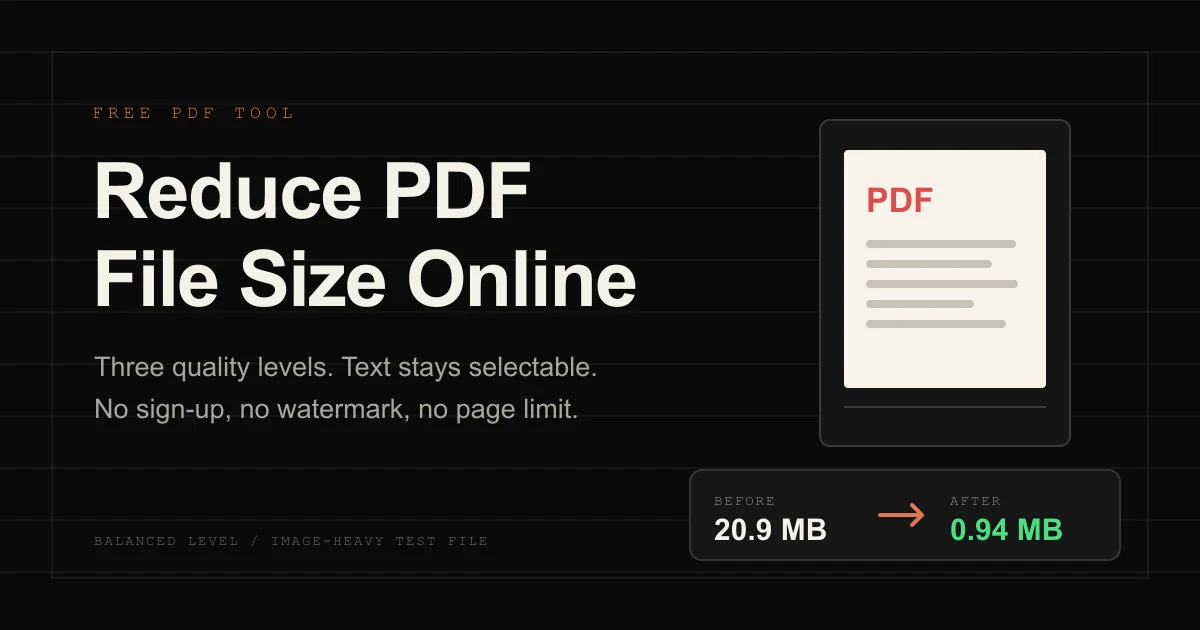
A large PDF can fail an email attachment limit, a school portal upload or a WhatsApp share. To reduce PDF file size online, upload the file to a compressor, choose a quality level, and download the smaller copy. Balanced is the best default for most documents: it reduces photos and scans to 150 dpi while keeping text sharp and selectable.
Quick answer: open the free PDF compressor, upload your PDF, choose Balanced, and download. If the destination still rejects the file, run the original again with Strong.
How to reduce PDF file size online
- Open the PDF compressor in your browser.
- Upload one PDF, up to 40 MB.
- Choose a compression level. Start with Balanced.
- Press Compress PDF and wait for the file to finish.
- Download the smaller PDF and open it once before you send or upload it.
The whole process usually takes a few seconds. A large scanned document can take up to a minute because every page image has to be re-encoded.
How much can a PDF shrink?
The result depends on what is inside the file. Text takes very little space. Photos, scans and full-page images are what make a PDF large.
In a test on one image-heavy PDF of 20.9 MB, the free compressor produced:
- Light, 200 dpi: 1.58 MB, about 92% smaller.
- Balanced, 150 dpi: 0.94 MB, about 96% smaller.
- Strong, 100 dpi: 0.46 MB, about 98% smaller.
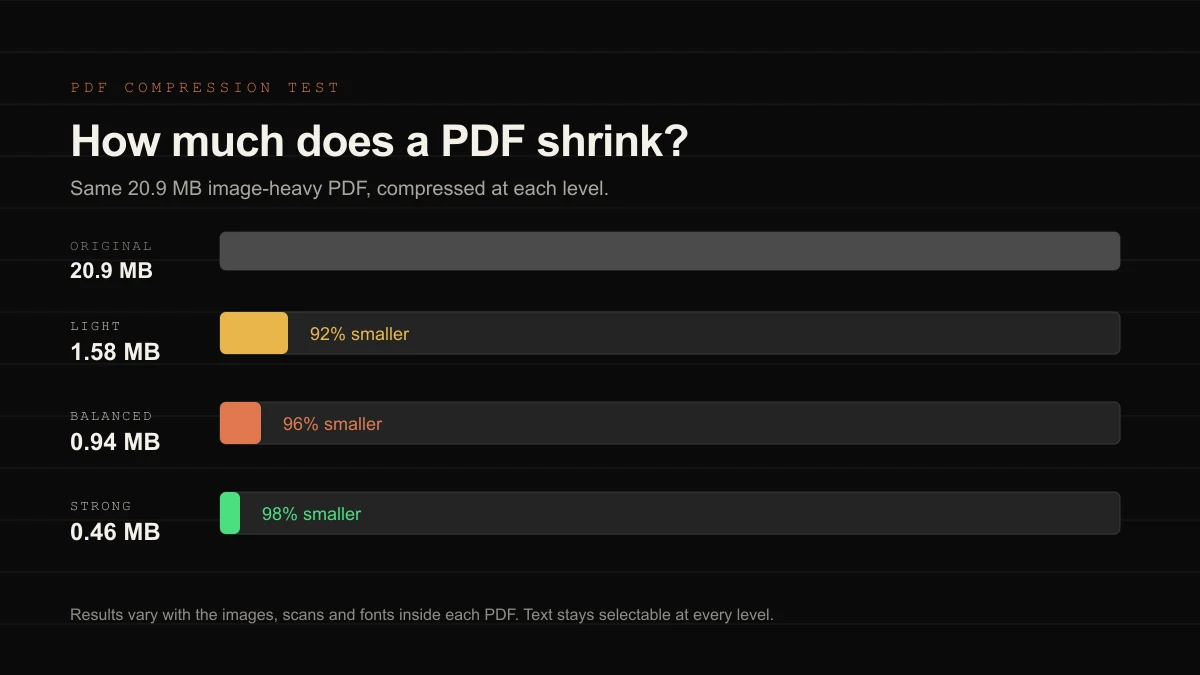
These are real test results, not a promise for every file. A PDF made mostly of typed text may shrink far less. A PDF that is already optimised may not shrink at all. When that happens, a good compressor returns the original file instead of a larger copy.
Which compression level should you use?
Light keeps the most image detail. Use it when the PDF will be printed, when a teacher needs to read handwriting, or when a diagram contains small labels. Expect a smaller reduction.
Balanced is the default for email, school portals, college forms and WhatsApp. It targets 150 dpi, which is enough for reading on a screen and for ordinary printing.
Strong is for a tight upload limit. It targets 100 dpi and gives the smallest file, but photos become softer. Avoid it for scanned notes, signatures and detailed maps unless the destination refuses everything else.
If you are unsure, use Balanced. If the portal still says the file is too large, run the original file again with Strong. Do not keep compressing the already compressed copy.
Reduce PDF size for email and upload portals
Different destinations have different limits. These are common:
- Email attachments: often 10 MB or 25 MB per message.
- School and college portals: often 1 MB to 5 MB.
- Government and scholarship forms: sometimes 200 KB to 2 MB.
- WhatsApp documents: usually generous, but slow connections still struggle with large files.
If your file is still too large for a 1 MB portal, try Strong first. If it is still over the limit, the PDF probably contains many high-resolution scans. Split it into two files, remove pages you do not need, or rescan at a lower resolution. A compressor cannot fit 100 scanned pages into 200 KB without making the text unreadable.
For a 200 KB target, check the output before uploading. Open the PDF, zoom in on the smallest text, and make sure the page numbers and signatures are still visible. A smaller file is not useful if the examiner cannot read it.
Reduce PDF size without losing quality
Compression does not usually make text blurry, because text and vector lines are stored as text and shapes, not as pixels. The visible change comes from images.
To keep the best quality:
- Start from the original PDF, not from a copy that was already compressed.
- Use Light when the document will be printed.
- Use Balanced for screen reading and ordinary email.
- Use Strong only when a portal rejects a larger file.
- Check the smallest text and the most important diagram after compression.
- Do not take screenshots of pages and rebuild the PDF. Screenshots turn every page into a photo and make the file much larger.
Why is your PDF so large?
Most large PDFs are heavy because of images. A scanned page is a photograph, and a phone camera captures much more detail than a screen or printer needs. A 20-page scan can easily reach 20 MB or more.
Other causes include:
- Many colour photos on every page.
- Embedded fonts and multiple versions of the same image.
- Repeated headers, footers and background graphics.
- Pages exported at print resolution when the file only needs to be read on screen.
- A PDF that was already compressed once and then re-saved several times.
The compressor re-encodes images at a sensible resolution and removes duplicate data. Text, lines and shapes stay sharp and selectable.
Does compressing a PDF affect quality?
The text stays sharp at every level. Images may lose some detail, especially at Strong. Faces, product photos and detailed artwork show the difference first. Text, tables, page numbers and signatures usually remain readable.
If the PDF is going to a printer, use Light. If it is going to an email inbox or a portal, Balanced is usually the right balance. Strong is a last resort for a strict file-size limit.
Is it safe to reduce PDF file size online?
The uploaded PDF is processed temporarily on the server and is not added to the project record. The compressed copy is sent back to your browser. Do not upload a document if your school, employer or client does not allow it to be processed by an online service.
For confidential documents, check your organisation's rules first. A free tool is convenient, but it should never override a privacy policy or a client agreement.
Reduce PDF file size on your phone
The compressor works in a phone browser. Open the page, tap the upload box, choose a PDF from Files or Downloads, select Balanced, and download the result. On Android and iPhone, the downloaded file usually appears in Files or Downloads and can be shared directly to WhatsApp, Gmail or a school portal.
If the phone gallery only shows photos, use the Files app or the share sheet to pick the PDF. Do not convert the PDF to images just to upload it.
Common mistakes
- Compressing an already compressed PDF. Start from the original for the best result.
- Using Strong for a printed document. Use Light or Balanced when image detail matters.
- Assuming every PDF will shrink by 90%. Text-heavy files have little to remove.
- Not checking the output. Open the file and read the smallest text before submitting.
- Uploading confidential documents without checking the rules. Use your organisation's approved tool when required.
- Trying to hit an exact size without checking readability. A tiny file with unreadable text is not a success.
Frequently asked questions
How do I reduce PDF file size to 200 KB?
Start with Strong. If the file is still over 200 KB, it likely contains many scans. Split the PDF, remove unnecessary pages, or rescan at a lower resolution, then compress again.
Which compression level is best for email?
Balanced. It keeps text sharp and usually brings an image-heavy file well below common email limits. Use Strong only if the mail server still rejects it.
Why did my PDF get bigger after compression?
Some PDFs are already optimised. Re-saving can add a small amount of overhead. A good compressor returns the original file when the new copy would be larger.
Can I compress a password-protected PDF?
Not directly. Remove the password or export an unlocked copy first, then upload it.
Does the compressor work on scanned PDFs?
Yes. Scanned pages are images, so they usually shrink the most. Use Balanced for readable scans and Light when the scan contains handwriting or fine detail.
Is there a page limit?
No page limit is applied. The upload limit is 40 MB per file, which is enough for most school projects, reports and scanned booklets.
Try the free PDF compressor
Reduce PDF file size online without a sign-up, watermark or page limit. Upload up to 40 MB, choose a level, and download the smaller file.
If you also need to combine photos into one document, use the image to PDF converter. For a complete school project file with a front page, certificate, acknowledgement and index, use the project generator.